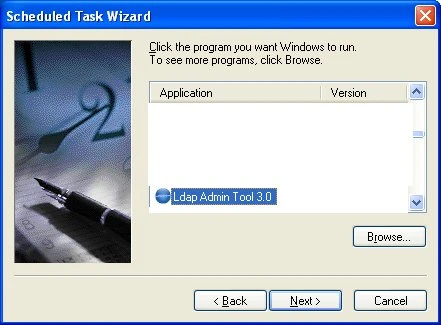


The Microsoft Task Scheduler is an amazing little FREE tool that (in most cases) comes already with your Windows installation. This tutorial explains how to schedule already saved task using windows task scheduler. (To Save Job for scheduling please see Step by Step tutorial to schedule LDAP/AD export to Excel ) On Windows XP and Server 2003 you can start Windows Task Scheduler by clicking the 'ScheduledTask' from the Start Menu| Control Panel. Double-click Add Scheduled Task. Click Next on the first wizard screen, select LDAP Admin Tool 3.0 from the program list.
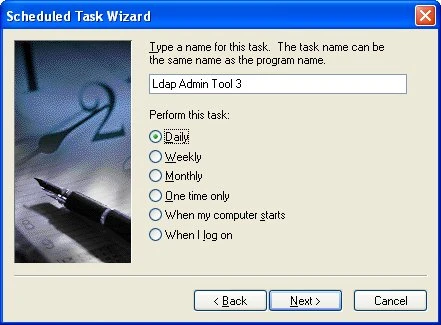
Enter a name for the task and set the scheduling options, Click Next.
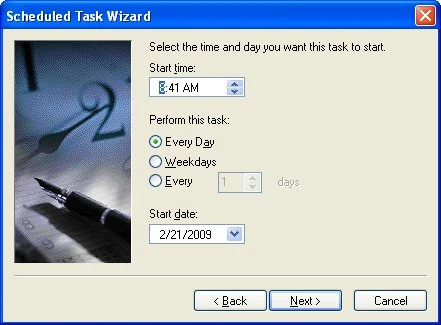
Set the time and other options, Click Next
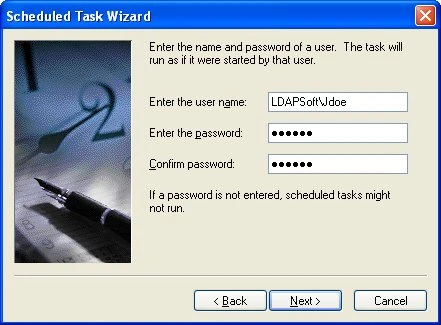
Enter the username and password the task will run as, and click Next.
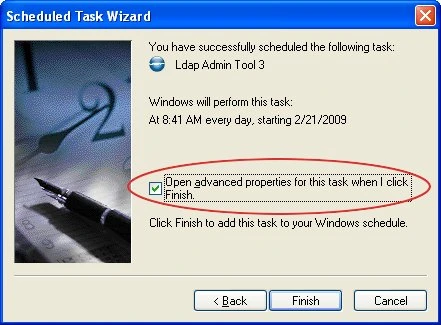
Check the Open advanced properties check box and click 'Finish'
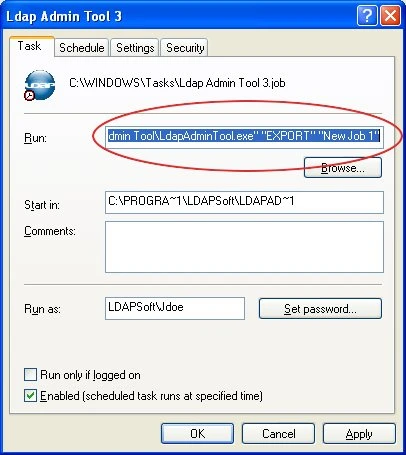
In the advanced options, paste the text in the 'Run' text box - the text you copied when you saved the export task and Click OK to save the task.
See Also: How to schedule task using Windows scheduler
|